Native speed
Tiles, viewer, compare, zoom, keyboard, and trackpad are built for the Mac.
Fast photo culling for folders
Open a photo folder and start culling immediately. Work at your computer—or pick from the couch over private local Wi‑Fi. Originals stay home.
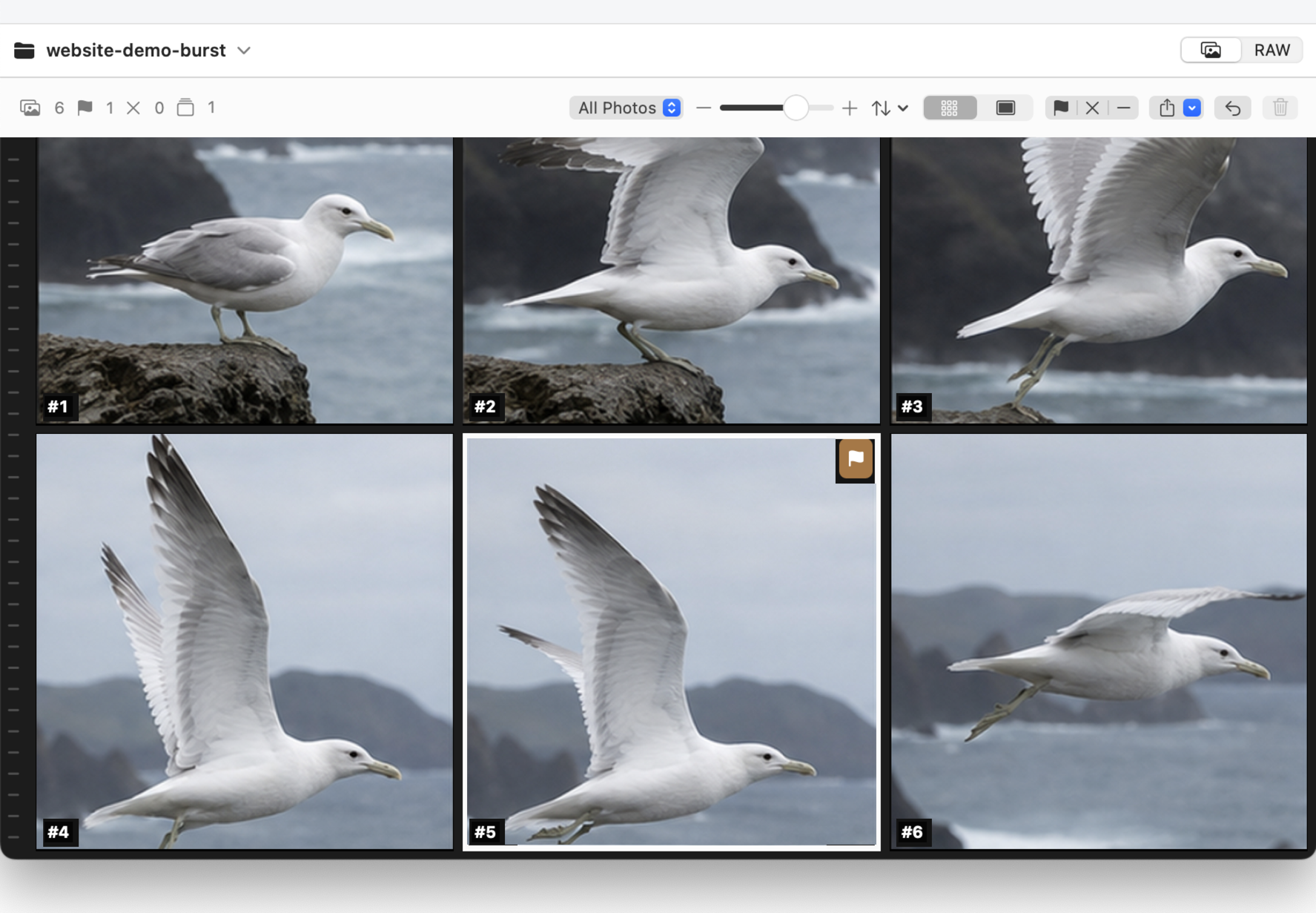
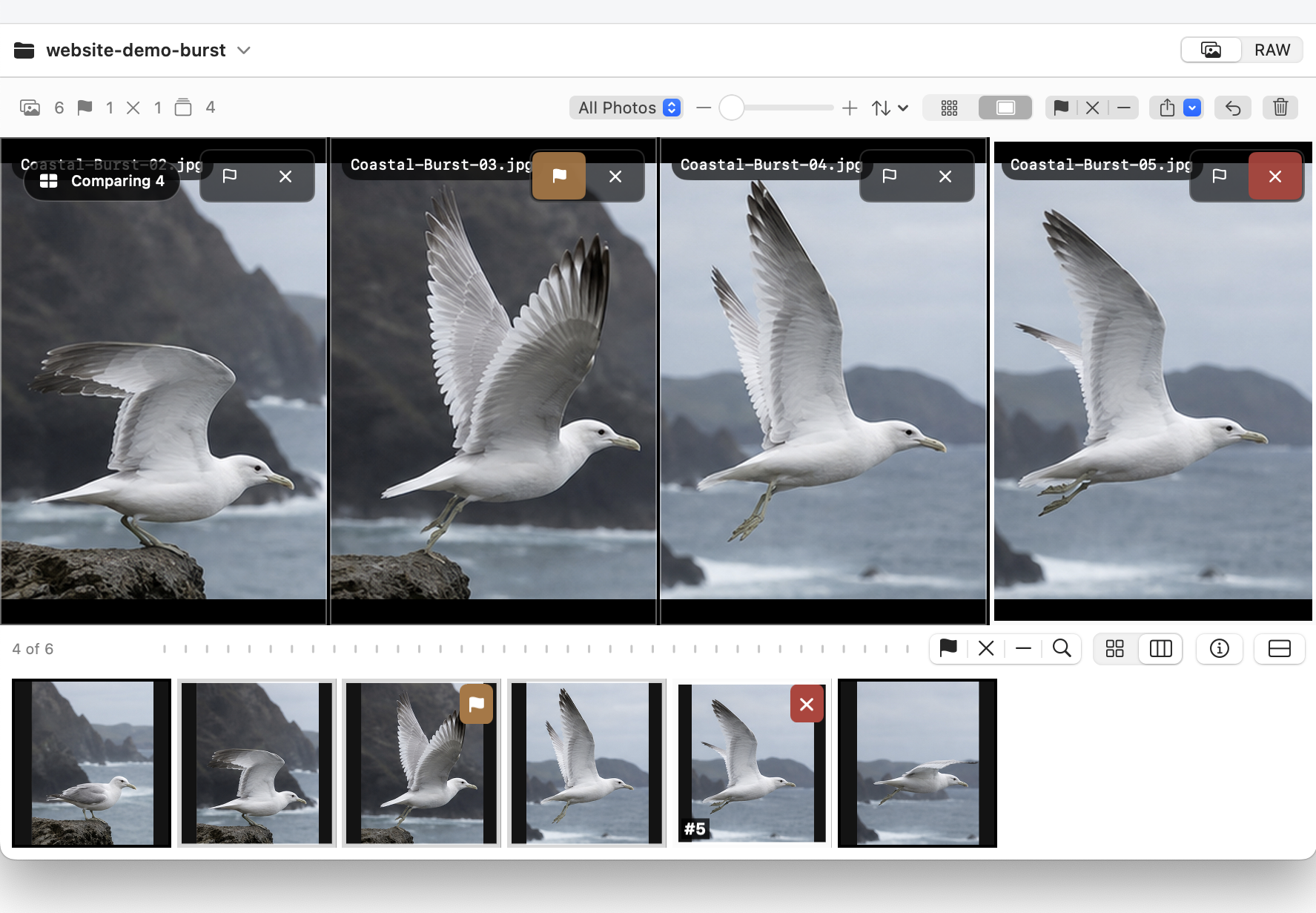
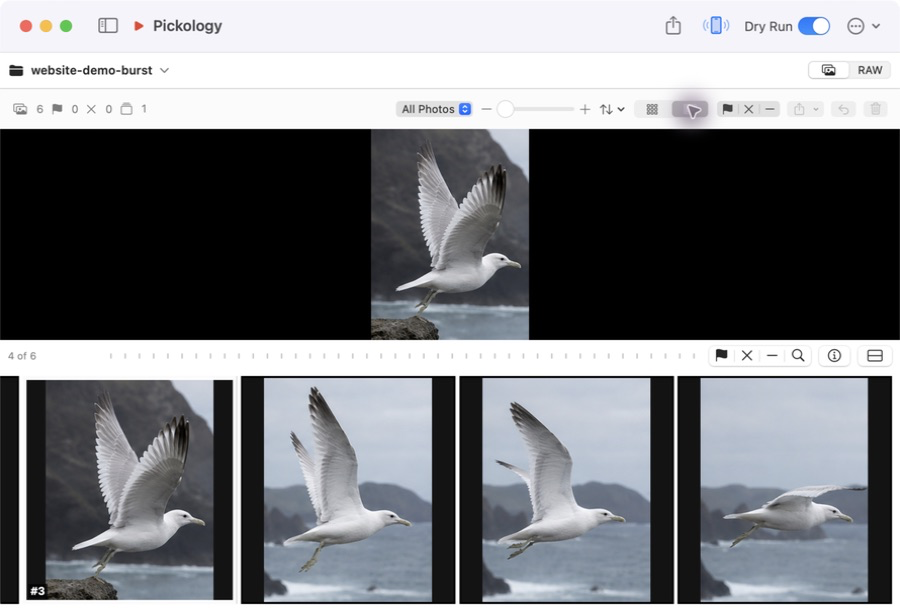
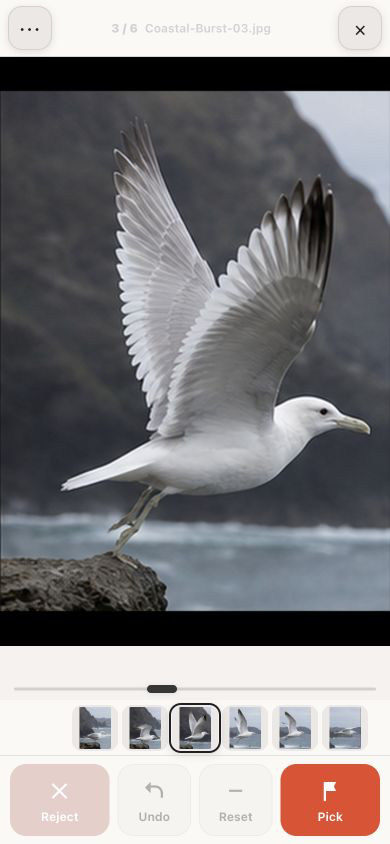
DIRECTNo importChoose a folder and begin.
REMOTEPick from the couchDirect on your trusted Wi‑Fi.
LIGHTWEIGHTNo catalogBounded previews, not another library.
How it works
Your existing organization stays intact.
Computer or phone, one local session.
Approve rejects before anything moves to Trash.
Made for first pass
Tiles, viewer, compare, zoom, keyboard, and trackpad are built for the Mac.
Your phone is a light remote; the computer still handles the heavy work.
No cloud relay, account, ads, analytics, or original-media upload.
Preview Only, batch review, Trash, and Undo protect the first pass.
Private preview
The current build is ad-hoc signed but not yet Apple-notarized. macOS therefore asks you to approve its first launch once.
Pricing: personal testing is free during the preview. A future commercial or studio license is planned; pricing and terms are not set.
Open it, then drag Pickology to Applications.
In Applications, choose Open from the shortcut menu.
macOS remembers the approval. Future launches work normally.
Details
This is an early test build for feedback. It is free to try, not yet notarized, and may change before a public release. A paid commercial or studio license may be introduced later; no price is set today.
The browser supports JPG, JPEG, HEIC, HEIF, Canon CR2/CR3, Sony ARW/SR2/SRF, Nikon NEF/NRW, Fujifilm RAF, Panasonic RW2, Olympus ORF, Pentax PEF, and DNG. RAW preview availability still depends on macOS ImageIO support for that camera file.
No. It is a fast first-pass browser and cleanup utility for folders. Edit and organize long-term wherever you already do.
Yes. Pickology works directly with ordinary folders and does not create or modify a Lightroom catalog. For Apple Photos, browse exported or on-disk originals rather than opening the Photos Library package itself; selected JPG, JPEG, HEIC, and HEIF files can be added to Photos from Pickology.
No. The desktop app processes locally. Web Remote connects directly to your computer on the same LAN when you enable it.
No account or key is required for desktop browsing and culling. The first time you enable Secure Remote, enter the one-time activation code supplied by your Pickology administrator. The code authorizes one Mac's initial enrollment, expires after seven days, is used once, and is not saved. It is not needed for later pairing or certificate renewal.
The Mac shows a pairing PIN after Secure Remote is activated. A paired browser receives an HttpOnly, SameSite cookie and reconnects directly over local HTTPS on the same LAN. There is no photo cloud relay or Pickology account.
No. Cleanup uses macOS Trash, keeps Preview Only enabled by default, and presents a batch review first.
Not today. The preview is for macOS 13 or later, and there is no committed Windows release date.

Free private preview · macOS 13+
No account or desktop activation key is required. Secure Remote requires a one-time code from your Pickology administrator. First launch requires the Control-click → Open step above.